The 5 ways at a glance
Every option works for some couples. The differences are what each one asks of your guests, the quality you get back and how long you wait for it.
| What guests need | Photo and video quality | When you get them | Main drawback | |
|---|---|---|---|---|
| WhatsApp group | WhatsApp and an invite to the group | Usually compressed, unless the sender chooses HD | During the party | Photos get buried between messages |
| Google Photos album or Drive folder | The link, and edit access for a Drive folder | Original, or resized if Google Photos saves space | During the party | Drive editors can also delete or move files |
| Disposable cameras | Nothing, the camera is on the table | Film look, a fixed number of shots | After the films are developed | No videos, and some shots fail |
| Guest photo app | Install an app, often create an account | Depends on the app | During the party | Guests who skip the download do not upload |
| OursQR code album (Pixworthy) | A phone camera, no app or account | Original files, untouched | During the party, plus late uploads | Free holds 50 uploads, a full wedding needs Wedding or Plus |
1. A WhatsApp group
The obvious choice. It is free, almost every guest already has WhatsApp, and a group can hold up to 1,024 members. Photos arrive while the party is still going, and guests enjoy reacting to each other's shots.
The catch is quality and order. WhatsApp says media is usually compressed when shared, so you get smaller copies than the photos on your guests' phones. Senders can choose HD, which is clearer but uses more data, and each guest has to pick it when sending. Photos also end up between hundreds of messages, so saving them all afterwards takes an evening. More on this in why WhatsApp lowers the quality of your wedding photos.
2. A shared Google Photos album or Google Drive folder
Also free, and everything lands in one place. In Google Photos you can share an album as a link or QR code. With collaboration turned on, anyone with the link can view the photos and add their own. An album holds up to 20,000 photos and videos.
The details need some care. Google Photos has two quality settings: Original quality, and Storage saver, which resizes photos above 16 MP and videos above 1080p. In a Google Drive folder, guests need Editor access to add files, and Editors can also delete or move any file in the folder. Files count toward the storage of whoever owns them, and a free Google account has 15 GB shared with Gmail and Photos. It suits confident phone users. Less technical guests may give up halfway.
3. Disposable cameras on the tables
Guests often love them. There is nothing to install, children and grandparents join in, and the photos have a real film look. Passing a camera around the table is an activity in itself.
But you only see the shots after the films are developed, and each camera has a fixed number of exposures. There are no videos, flash photos in a dark room can come out dark or blurry, and a camera sometimes goes home in someone's bag. Developing and scanning is an extra job after the wedding.
4. Guest photo apps that guests must install
Dedicated wedding apps give you one shared album, often with extras such as filters, photo challenges or a slideshow. Photos arrive during the party, and you keep them out of your family chats.
The hurdle is the download. Every guest has to find the app in their app store, install it and often create an account, in the middle of a party and sometimes on weak venue Wi-Fi. Guests who skip that step simply do not upload. See how the options differ in wedding photo apps compared.
5. A QR code guest album in the browser
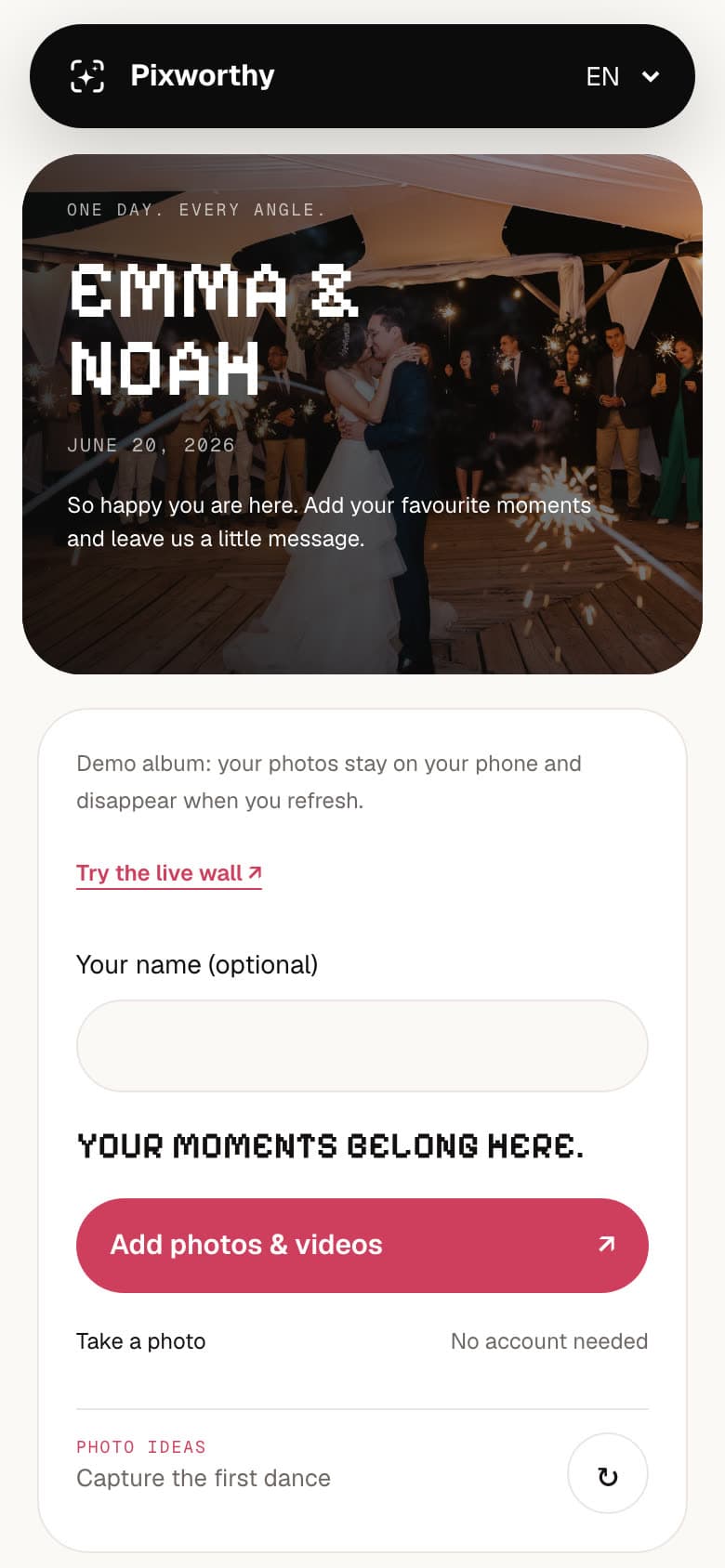
This is what Pixworthy does. You put one QR code on every table. Guests scan it with their phone camera, choose photos or videos and upload, without an app or an account. Uploads start as soon as they pick files, pause when the Wi-Fi drops and carry on when it is back.
You get the original files, untouched: nothing is resized, converted or compressed. The guest page works in seven languages, you can add a password, and you decide whether guests see each other's uploads. Want photos on a screen during the party? Turn on the live wall. The honest limit: Free holds 50 uploads in total, so for a full wedding you need Wedding or Plus, which have no upload limit. Try it as a guest in the demo.
Before and on the day
- A few weeks before, choose one main place for all photos and videos. Two groups and an album side by side split the photos up.
- Test it from your own phone and from a relative's phone, ideally one iPhone and one Android.
- Print a card for every table, plus one at the bar and the entrance. Guests upload when the code is in front of them.
- On the day, ask the MC or the DJ to mention it after the ceremony and again during the party. A spoken reminder brings in the most photos.
- Using disposable cameras or a photo booth as well? Put the QR code next to them, so the shots on phones have a home too.
- A screen with the latest photos is a reminder in itself. See what that looks like on the demo live wall.
After the wedding: late uploads and downloading everything
- The day after, send guests the same link with a short thank-you. Many of the best photos are still on their phones.
- Ask witnesses, family and anyone with a real camera to add theirs. With Pixworthy they use the same link or QR code while the album still takes uploads.
- Ask for videos as uploads, not chat messages. Videos are the files that lose the most when they are sent through a chat app.
- Download everything in one go. With Pixworthy you download the whole album as a ZIP, or only the photos or videos, from your account. Keep a second copy on your computer or an external drive.
Questions
What is the easiest way to collect photos from wedding guests?
One place every guest can reach in seconds, straight from the table. A QR code album in the browser asks the least: guests scan, choose and upload, without an app or an account, and you get the original files. A WhatsApp group also works if quality matters less to you.
Is a WhatsApp group good enough for wedding photos?
For quick snaps, yes. It is free and everyone knows how it works. But WhatsApp usually compresses photos and videos when they are shared, unless the sender chooses HD, and the photos are mixed in with messages. If you want the originals, use an album that keeps the files untouched.
How do we get every photo in full quality?
Ask guests to upload the files themselves instead of sending them through a chat app. Pixworthy never resizes, converts or compresses what your guests' phones send, and your download contains exactly those files. On iPhone, guests send the full HEIC original with its metadata when they tap Options, then Current, in the photo picker; the guest page shows them how. iPhone browsers never send where a photo was taken.
Can guests still upload photos after the wedding?
With Pixworthy, yes, as long as the album still takes uploads. Guests open the same link or scan the QR code again. The upload closing date is separate from the date your album expires.
Do guests need to download an app?
Not with a browser album. With Pixworthy, guests scan the QR code with their phone camera or open the link. They only need a password if you set one. Guest photo apps have to be installed first.
Sources
- WhatsApp Help Center: How to create and invite into a group
- WhatsApp Help Center: Troubleshoot blurry photos
- WhatsApp Help Center: How to edit photos and videos (HD media)
- Google Photos Help: Share photos & videos
- Google Photos Help: Create & edit photo albums
- Google Photos Help: Choose the backup quality of your photos & videos
- Google Drive Help: Share folders in Google Drive
- Google One Help: How your Google storage works
Facts about other products were checked on their own websites on October 10, 2026. If something has changed, tell us at [email protected] and we will correct it.