What is a live wall?
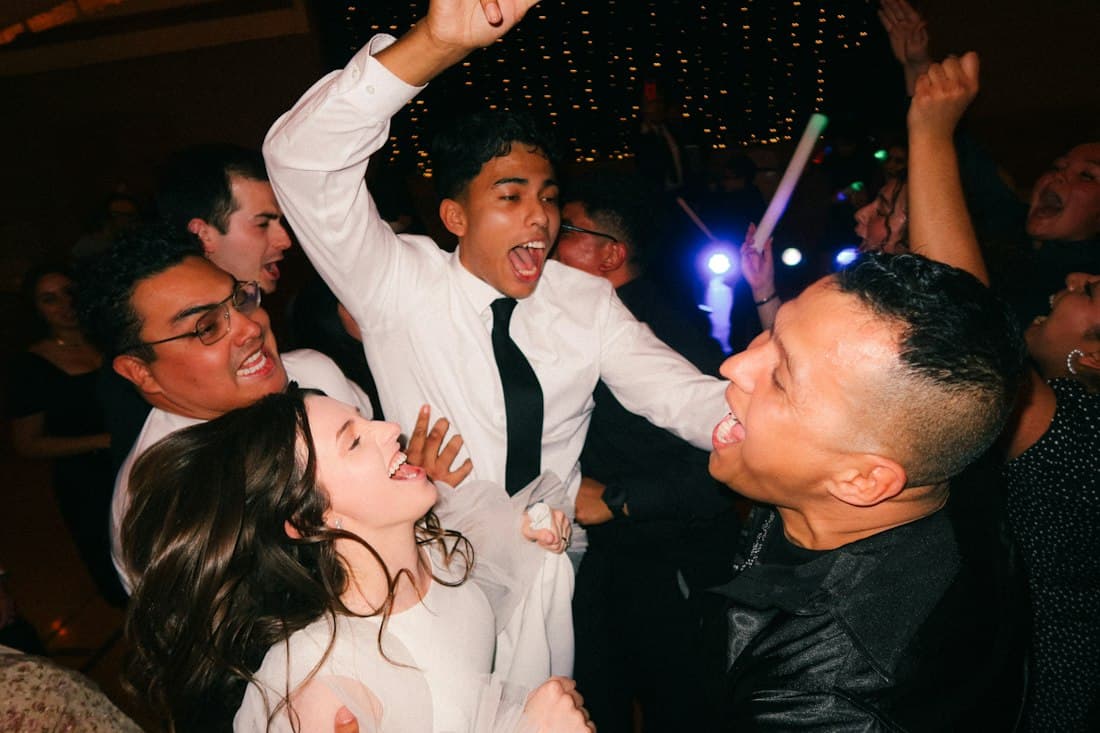
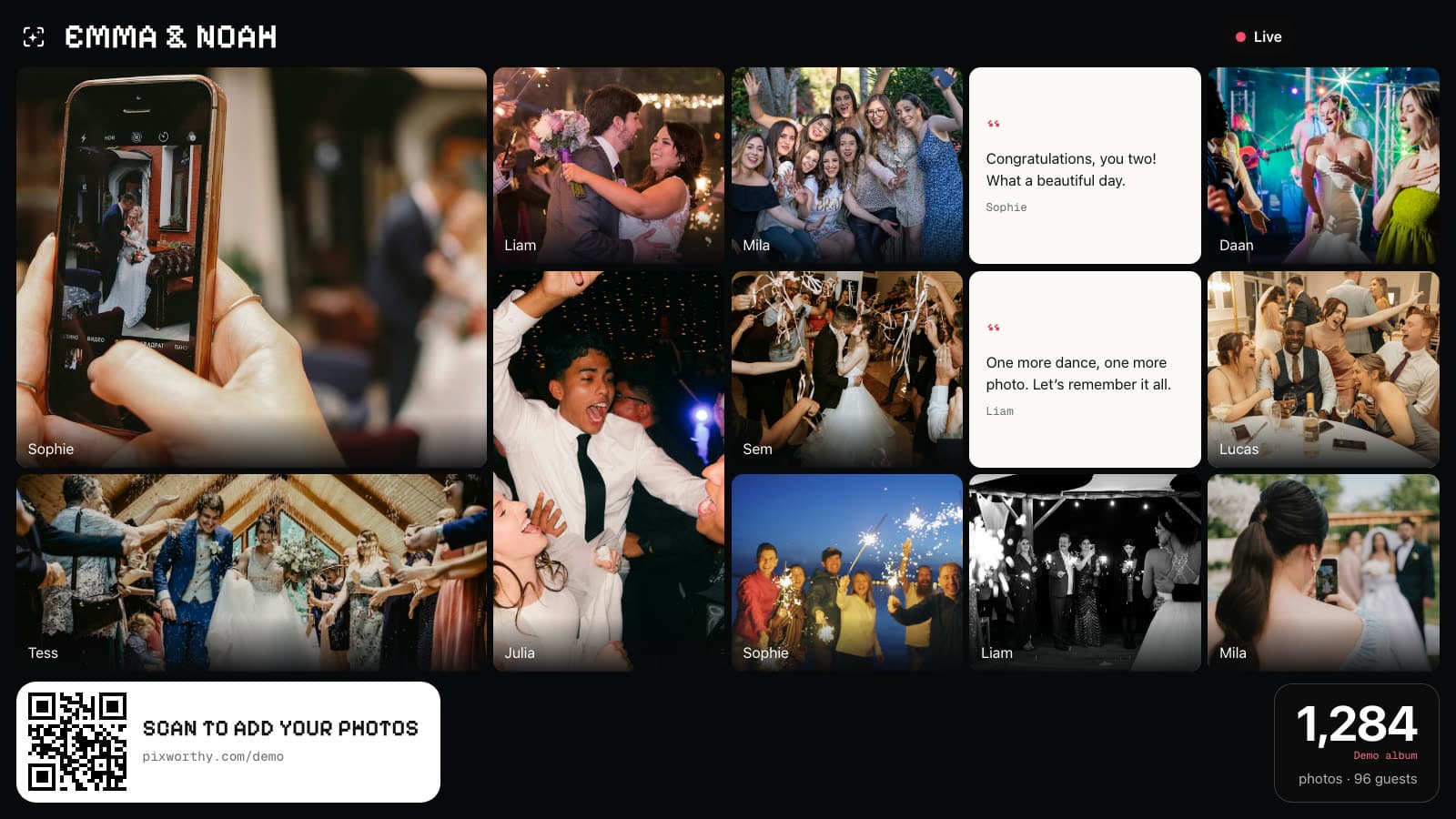
A live wall is a slideshow that fills itself. Guests take photos on their phones, upload them, and moments later those photos are on the big screen at the venue. Nobody has to collect files or build a slideshow in advance.
It gives the whole room a shared view of the day. Guests at the far tables see what is happening on the dance floor, and anyone who stepped out during the speeches can catch up while the party is still going. You can try it on the demo wall, which runs with example photos.
How the live wall works with Pixworthy
- Guests scan the QR code on the tables with their phone camera and upload their photos. No app and no account.
- New photos reach the wall within seconds. The newest one takes the big tile and the others move along.
- The wall keeps rotating by itself. One featured photo changes on a timer you choose, and guest names can appear with each photo.
- A corner of the screen can show your QR code and guest link, next to a running count of photos and guests. People who see the wall can join in straight away.
What you need for a live wall
The wall is a web page, so you do not need special equipment. Most venues already have everything:
- A laptop or computer with an up-to-date browser.
- An HDMI cable to connect it to a TV, a large monitor or a projector. A smart TV with a built-in browser can also open the wall, but test it first, because these browsers vary.
- A stable internet connection for that computer. Ask the venue for the Wi-Fi details in advance, and keep a phone hotspot as a backup.
- Power for the laptop, with sleep and the screen saver switched off, so the screen does not go dark halfway through the evening.
How to set up the live wall, step by step
Set it up the day before if you can, on the screen you will use on the night.
- Sign in to your account, open your album and go to Settings, Live wall.
- Under Wall display, choose how many seconds each photo is featured (2 to 60), whether guest names appear and whether the corner shows the QR code and guest link.
- Running the screen yourself? Open the live wall while signed in. Is the venue, the DJ or a friend running it? Switch on the public wall link and send it to them, or show its QR code on the venue computer. They do not need your login.
- Connect the computer to the screen, open the wall and press F or the full screen button. The mouse pointer hides itself when nobody touches it.
- Upload a test photo from your own phone and watch it appear. Hide it afterwards if you like.
- During the party, the signed-in wall has keyboard shortcuts: Space pauses or resumes the wall on every screen, the arrow keys step through the photos, F toggles full screen and ? shows help.
Pinned photos, slides and guestbook messages
Under More options you can pin up to 5 photos, such as a favourite from the ceremony. Pinned photos lead every round and appear more often. Plus and Planner albums can also add up to 5 welcome or sponsor slides, shown full screen every few photos.
On every plan, guests can leave a written message in the guestbook. Messages stay private unless you switch on Show messages on the live wall. Then approved, visible messages appear between the photos, and anyone watching can read them.
What appears on the wall, and what does not
The wall follows your album settings, so you stay in control of the big screen:
- Only approved, visible photos and videos. On Wedding, Plus and Planner albums you can approve new photos before guests and the wall see them. On every plan, hide a photo and it leaves the wall within seconds, while it stays in your album and your download.
- Videos play on the wall too, muted and for at most their first 18 seconds, shortly after they are uploaded. The originals stay in your album in full quality.
- Written guestbook messages appear only if you switch them on.
- Pause clears the wall within seconds and shows a Back soon screen. Guests can keep uploading, and co-hosts can pause the wall too.
- With a timed reveal on Plus and Planner albums, the wall waits and shows when the photos will appear. Once the album closes, the wall shows no photos.
- Anyone who can see the screen can see the photos. The public wall link works even if your guest page has a password or a private gallery. Guest names never appear on it, and resetting the link stops the old one from working.
Tips for the night
- Put the screen where people already gather, such as near the bar or at the edge of the dance floor. A screen behind the head table is mostly seen by the two of you.
- Switch the wall on after the ceremony, when the first photos come in. An empty wall shows Waiting for the first photo, so a couple of test photos help it start.
- Announce it. Ask the MC or the DJ to tell guests that their photos appear on the screen. Seeing their own photo up there gets people uploading.
- Keep the QR code corner on, so guests can scan straight from the screen.
- Pause the wall during the speeches or the first dance if you want all eyes on the room, and resume it afterwards.
- Think about who passes by. In a shared space, such as a hotel lobby, place the screen where only your guests see it.
For wedding planners and venues
Every event gets its own live wall. With the public wall link, the venue's AV team or the DJ can run the screen without the couple's login. Reset the link after the event and the old one stops working.
Planning several weddings a year? With the Planner plan you manage every couple's album, QR code and live wall from one account, and Planner albums include welcome and sponsor slides. For the whole guest flow, read how to collect wedding photos from guests.
Questions
What do we need for a live wall at our wedding?
A laptop or computer with a browser, a TV, monitor or projector connected with HDMI, and a stable internet connection. A smart TV with a built-in browser can also work if you test it first. Guests only need their phone.
Is the live wall included in every plan?
Yes. The live wall and the public wall link are included on every plan, including Free. Welcome and sponsor slides need Plus or Planner, and approving photos before they appear needs Wedding, Plus or Planner. Compare the plans on the pricing page.
How quickly do photos appear on the wall?
Within seconds of the upload finishing. On a slow connection a large photo takes longer to upload, so it can arrive a little after the guest took it.
Do videos play on the live wall?
Yes, muted and for at most their first 18 seconds. The wall plays a short copy without sound or metadata; the original stays in your album in full quality and is part of your download.
Can the venue run the wall without our login?
Yes. Switch on the public wall link in Settings, Live wall, and send it to the venue or show its QR code on their computer. Anyone with the link can watch, even if your guest page has a password. Guest names never appear on the public wall, and you can reset the link at any time.
Can we stop a photo from appearing on the big screen?
Yes. Hide it and it leaves the wall within seconds, while it stays in your album. To check every photo first, switch on approval on a Wedding, Plus or Planner album. You can also pause the whole wall at any time.